This is part 4 in a series on getting started with Silverlight.  To view the index to the series click hereYou can download the completed project files for this sample application in C# or Visual Basic.

In the previous step 3 we did a lot of work to get back our data from a public web service and display it in a control.  The DataGrid control we used, however, isn’t really the UI we’re looking for so let’s define what we want.  To do this we’re going to use an ItemsControl and a DataTemplate.  This will introduce us to XAML binding syntax and how to leverage more powerful data binding information.

Starting the UI over – delete the DataGrid

Well, after all that work, let’s delete the DataGrid and just the DataGrid.  We won’t be needing the assembly reference or the xmlns:data values anymore as well, so go ahead and remove them.

Replace the DataGrid with an ItemsControl like this:

   1: <ItemsControl x:Name="SearchResults" Margin="0,8,0,0" Grid.Row="1" />

Now here is where Blend is going to be helpful for us again.  Go into Blend and we’re going to modify the ItemTemplate for the ItemsControl.  ItemsControl is just essentially a rendering control that does what we tell it to.  If we do nothing but change the DataGrid to an ItemsControl and run our application this is what we’ll get:
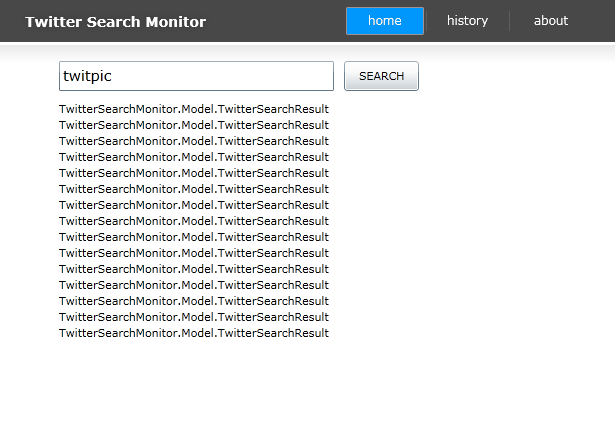
ItemsControl rendering with no template

The ItemsControl has no idea how we want to display the data, so we have to tell it how in a template…back to Blend.  The general concept we’re going to go for is this (repeated of course):

ItemsControl template mockup

where the box is the avatar of the user posting the message.  Using our knowledge of layout from the previous steps we can create the template easily.  In Blend, locate the SearchResults object in the tree and right click to edit the ItemsTemplate (under the Generated Templates section):
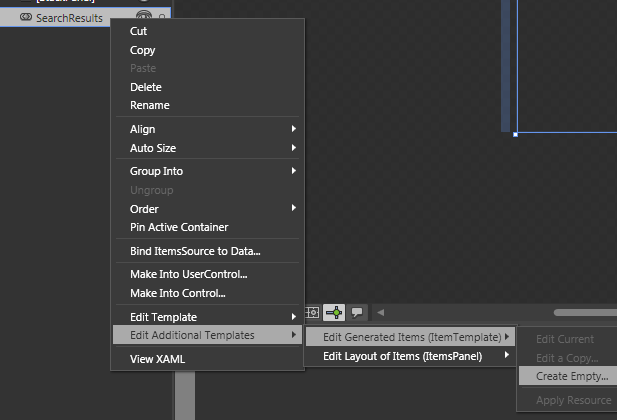
Edit Generated Items menu option

we now have an empty template we can put stuff in.  I called mine SearchResultsTemplate in the dialog that came up.  Now we are in layout editing mode and can drag/move/etc items in our layout.  I created a Grid-based layout and here’s my resulting XAML for the template:

   1: <DataTemplate x:Key="SearchResultsTemplate">
   2:     <Grid Margin="4,0,4,8" d:DesignWidth="446" d:DesignHeight="68">
   3:         <Grid.ColumnDefinitions>
   4:             <ColumnDefinition Width="Auto" />
   5:             <ColumnDefinition Width="*" />
   6:         </Grid.ColumnDefinitions>
   7:         <Border VerticalAlignment="Top" Margin="8" Padding="2" Background="White">
   8:             <Image Width="40" Height="40" />
   9:         </Border>
  10:  
  11:         <StackPanel Grid.Column="1" VerticalAlignment="Top" Margin="0,4,0,0">
  12:             <TextBlock x:Name="AuthorName" FontWeight="Bold" />
  13:             <Grid Margin="0,6,0,0">
  14:                 <Grid.RowDefinitions>
  15:                     <RowDefinition Height="Auto" />
  16:                     <RowDefinition Height="2" />
  17:                     <RowDefinition Height="Auto" />
  18:                 </Grid.RowDefinitions>
  19:                 <TextBlock x:Name="TweetMessage" TextWrapping="Wrap" />
  20:                 <TextBlock x:Name="PublishDateLabel" Grid.Row="2"  />
  21:             </Grid>
  22:         </StackPanel>
  23:     </Grid>
  24: </DataTemplate>

I’m also putting the ItemsControl itself into a ScrollViewer since the ItemsControl doesn’t natively provide a scrolling view:

   1: <ScrollViewer Grid.Row="2" HorizontalScrollBarVisibility="Disabled" VerticalScrollBarVisibility="Auto" BorderThickness="1">
   2:         <ItemsControl x:Name="SearchResults" Margin="0,8,0,0" Grid.Row="1" ItemTemplate="{StaticResource SearchResultsTemplate}" />
   3:     </ScrollViewer>

Now all we have is a template, but we have to tell that template what to do with the data it will be receiving.

The XAML binding syntax

Here’s where our binding syntax is going to come in.  You see, ItemsControl is getting data to it (remember we haven’t changed our code so the SearchResults.ItemsSource is still being set to our PagedCollectionView.  To map our model elements to our template we need to use Binding.  The basic XAML binding syntax is:

{Binding Path=<some-data-path>, Mode=<binding mode>}

There are more advanced features you could get into, but this is the basic and we’ll start here.  For instance, to bind our Image element in our template to our Avatar from TwitterSearchResult model, it will look like this:

   1: <Image Width="40" Height="40" Source="{Binding Path=Avatar, Mode=OneWay}" />

And to bind the Author to the AuthorName element like this:

   1: <TextBlock x:Name="AuthorName" FontWeight="Bold" Text="{Binding Path=Author, Mode=OneWay}" />

In both of these we are using OneWay syntax because we don’t need to have it be TwoWay as we aren’t changing data back.  For the PublishDate, we want to provide some explicit formatting of the data.  We can do this through Value Converters.

Building a Value Converter

Value converters are classes that implement IValueConverter, which provides a Convert and ConvertBack methods.  For our PublishDate we’re going to basically allow explicit formatting of the DateTime object.  We’ll create a DateTimeConverter.cs class in a folder in our project called Converters.  The class looks like this:

   1: using System;
   2: using System.Threading;
   3: using System.Windows.Data;
   4:  
   5: namespace TwitterSearchMonitor.Converters
   6: {
   7:     /*
   8:      * Use this converter for formatting dates in XAML databinding
   9:      * Example:
  10:      *  Text="{Binding Path=PublishDate, Converter={StaticResource DateTimeFormatter}, ConverterParameter=MMM yy}" />
  11:      * 
  12:      * */
  13:     public class DateTimeConverter : IValueConverter
  14:     {
  15:         #region IValueConverter Members
  16:  
  17:         public object Convert(object value, Type targetType, object parameter, System.Globalization.CultureInfo culture)
  18:         {
  19:             DateTime? bindingDate = value as DateTime?;
  20:  
  21:             if (culture == null)
  22:             {
  23:                 culture = Thread.CurrentThread.CurrentUICulture;
  24:             }
  25:  
  26:             if (bindingDate != null)
  27:             {
  28:                 string dateTimeFormat = parameter as string;
  29:                 return bindingDate.Value.ToString(dateTimeFormat, culture);
  30:             }
  31:  
  32:             return string.Empty;
  33:         }
  34:  
  35:         public object ConvertBack(object value, Type targetType, object parameter, System.Globalization.CultureInfo culture)
  36:         {
  37:             throw new NotImplementedException();
  38:         }
  39:  
  40:         #endregion
  41:     }
  42: }

Now to use this we'll go back to our XAML page that will be using this (Search.xaml) and add an xmlns declaration and a resource.  The xmlns we’ll use looks like this:

   1: xmlns:converters="clr-namespace:TwitterSearchMonitor.Converters"

and then in the Resources section of the XAML (where the other template is defined) we’ll add a resource that points to the converter:

   1: <navigation:Page.Resources>
   2:         <converters:DateTimeConverter x:Key="DateTimeFormatter" />
   3: ...

With these two things in place we can use our converter on our PublishDateLabel element like this:

   1: <TextBlock x:Name="PublishDateLabel" Text="{Binding Path=PublishDate, 
   2:         Converter={StaticResource DateTimeFormatter},
   3:         ConverterParameter=dd-MMM-yyyy hh:mm tt}" Grid.Row="2"  />

This tells XAML that it should run the IValueConverter to get the rendered output.  Our result is the explicit formatting of data that we want.  The result of all this additional syntax for binding now shows the rendering in our desired mockup:
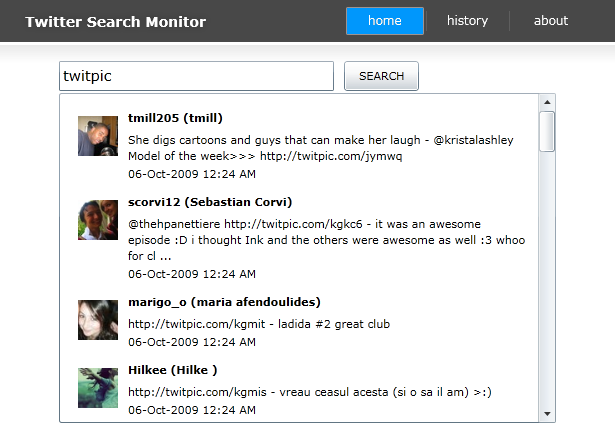
Rendered ItemsControl data template

(yes I know that ‘twitpic’ as a search shows some interesting results…but you can count on it to have fast refreshing data as a search term!)

Great!  That wasn’t that difficult, was it?  This binding syntax will be essential to building applications for you.

Storing some settings and configuration data

One of the things that would be helpful for our application is to store the last tweet ID so that the next time the application is run, we can start where we left off without starting over.  Additionally it would be cool to save the search term history so that we can view it in our History navigation point later.

To accomplish this, we’ll be using Isolated Storage available in Silverlight.  Isolated Storage enables a low-trust user-specific location for storing simple data.  For some more information on Isolated Storage:

To do this I’m going to add a Helper class to our Model folder.  This helper class will assist us in saving/reading data from our isolated storage location.  The basics of IsolatedStorage are that you create a file to which you can read data from or write data to if you want.  In our use we’ll use IsolatedStorageSettings for saving simple name/value pair data (search term/last ID).  Here’s the contents of the Helper.cs class:

   1: using System.IO.IsolatedStorage;
   2:  
   3: namespace TwitterSearchMonitor.Model
   4: {
   5:     public class Helper
   6:     {
   7:         internal static string GetLatestTweetId(string searchTerm)
   8:         {
   9:             if (IsolatedStorageSettings.ApplicationSettings.Contains(searchTerm))
  10:             {
  11:                 return IsolatedStorageSettings.ApplicationSettings[searchTerm].ToString();
  12:             }
  13:             else
  14:             {
  15:                 return "0";
  16:             }
  17:         }
  18:  
  19:         internal static void SaveLatestTweetId(string searchTerm, string latestId)
  20:         {
  21:             if (IsolatedStorageSettings.ApplicationSettings.Contains(searchTerm))
  22:             {
  23:                 IsolatedStorageSettings.ApplicationSettings[searchTerm] = latestId;
  24:             }
  25:             else
  26:             {
  27:                 IsolatedStorageSettings.ApplicationSettings.Add(searchTerm, latestId);
  28:             }
  29:         }
  30:     }
  31: }

Now in our Search.xaml.cs we’ll add the following in SearchForTweetsEx after the activity indicator is set:

   1: _lastId = Helper.GetLatestTweetId(SearchTerm.Text); // get the latest ID from settings
   2:  
   3: Helper.SaveLatestTweetId(SearchTerm.Text, _lastId); // saving for history even if a result isn't found

and then in the OnReadCompleted after we close the XmlReader we’ll add this:

   1: Helper.SaveLatestTweetId(SearchTerm.Text, _lastId); //saving last tweet id

And that now saves the search terms used as well as the last ID found if a result was found.

Summary

In this step we’ve set up a data template for a control, used some simple data binding using the XAML declarative syntax, added a value converter to format our view of information and save settings information to a local storage mechanism.

We’ve got basically our application working, so let’s start adding some interesting polish to the UI.

Let’s move on to part 5 where we add some new controls to enhance the experience using the data we just stored in this step.


This work is licensed under a Creative Commons Attribution By license.

This is part 5 in a series on getting started with Silverlight.  To view the index to the series click hereYou can download the completed project files for this sample application in C# or Visual Basic.

In our previous step we added better data binding and saved some data to our isolated storage area.  Let’s start integrating some other controls to make our experience a little better.

AutoCompleteBox

Remember the history data we save every time a search term is used?  Let’s help our users search better, by providing them a history of their searches in the TextBox while they type.  We’re going to use a control from the Silverlight Toolkit to accomplish this, AutoCompleteBox.

To do this we need to add a reference to the System.Windows.Controls.Input assembly.  Then add an xmlns to your Search.xaml file:

   1: xmlns:input="clr-namespace:System.Windows.Controls;assembly=System.Windows.Controls.Input"

With this in place, change the control named SearchTerm from TextBox to input:AutoCompleteBox:

   1: <input:AutoCompleteBox x:Name="SearchTerm" FontSize="14.667" Margin="0,0,10,0" Width="275"
   2:      IsTextCompletionEnabled="True" />

Now we need to provide data for the AutoCompleteBox.  In our Helper.cs class I added the following function:

   1: internal static string[] GetSearchTermHistory()
   2: {
   3:     List<string> searchHistory = new List<string>();
   4:  
   5:     foreach (var item in IsolatedStorageSettings.ApplicationSettings.Keys)
   6:     {
   7:         searchHistory.Add(item.ToString());
   8:     }
   9:  
  10:     return searchHistory.ToArray();
  11: }

Then in the Loaded event handler for Search.xaml.cs I added a call to Helper.GetSearchTermHistory():

   1: void Search_Loaded(object sender, RoutedEventArgs e)
   2: {
   3:     SearchResults.ItemsSource = pcv; // bind the DataGrid
   4:     _timer.Start(); // start the timer
   5:     SearchForTweetsEx(); // do the initial search
   6:     SearchTerm.ItemsSource = Helper.GetSearchTermHistory(); // populate autocomplete
   7: }

The result of which now is that when the application loads it will give the user some hinting while they search:

AutoCompleteBox in action

Helpful!

Adding our History view

Now that we have our search history, we can provide some data in a new view called History.xaml.  You should have already created this in the Views folder in a previous step, but if you haven’t, do so now (using the Silverlight Page item template).  Here we’ll want to show perhaps a simple list of all the terms.  We can easily do this using a ListBox in our XAML like this:

   1: <StackPanel>
   2:     <TextBlock x:Name="HeaderText" Style="{StaticResource HeaderTextStyle}" 
   3:                    Text="Serach Term History"/>
   4:     <ListBox x:Name="SearchTermHistory" />
   5: </StackPanel>

Then using a function we already have in Helper.cs, we can bind new data to the listbox like this in History.xaml.cs:

   1: protected override void OnNavigatedTo(NavigationEventArgs e)
   2: {
   3:     SearchTermHistory.ItemsSource = Helper.GetSearchTermHistory();
   4: }

So we are able to make re-use of a function to display a complete history of our terms:

History pane view

Adding some more navigation functionality

Now that we have a couple of views in the application, notice the navigation framework working.  You can navigate using the buttons, but also the back/forward browser buttons will also trigger the same functionality!

We can actually take this to the next level with the History view now.  In the ListBox I’m adding a SelectionChanged event handler:

   1: <ListBox x:Name="SearchTermHistory" SelectionChanged="SearchTermHistory_SelectionChanged" />

The function looks like this in History.xaml.cs:

   1: private void SearchTermHistory_SelectionChanged(object sender, SelectionChangedEventArgs e)
   2: {
   3:     this.NavigationService.Navigate(new Uri(string.Format("/Search/{0}", 
   4:             SearchTermHistory.SelectedItem.ToString()), UriKind.Relative));
   5: }

Notice the URI format I’m using?  It will end up being /Search/{term}.  We need to instruct our Navigation Frame in the application to map that accordingly.  Go back to MainPage.xaml and find the UriMapper content and add this line:

   1: <uriMapper:UriMapping Uri="/Search/{term}" MappedUri="/Views/Search.xaml?term={term}" />

Now we need to make our Search.xaml page understand this.  In Search.xaml.cs in the OnNavigatedTo I add this functionality:

   1: protected override void OnNavigatedTo(NavigationEventArgs e)
   2: {
   3:     if (this.NavigationContext.QueryString.ContainsKey("term"))
   4:     {
   5:         SearchTerm.Text = this.NavigationContext.QueryString["term"].ToString();
   6:         SearchForTweetsEx();
   7:     }
   8: }

Now when a user goes to the History page and selects an item, it automatically executes the search!

Summary

Integrating other controls and 3rd party controls like this will help define your user experience and hopefully provide an better experience for your users of the application.  There are a bunch of 3rd party control vendors producing great sets of components.  Visit my Silverlight Controls post for a list of them.  Be sure to check out the Silverlight Toolkit for others from Microsoft and a sample application showing all the controls.

We’ve got our application pretty well working, but the UI could use some more polish, in the next step in part 6 let’s show how we can better template this without affecting functionality.

This is part 6 in a series on getting started with Silverlight.  To view the index to the series click here. You can download the completed project files for this sample application in C# or Visual Basic.

We now have a functioning application but could use some more polish.  Let’s make the data template for the search results look a little better.  We’re going to modify a few things in the data template in Search.xaml for the ItemsControl. 

These modifications can be done in Blend just like we have been doing with the editing template features.  This is how it was accomplished above.  With these styles now applied the new UI looks like this:

Styled results

Notice how more polished that looks and we didn’t affect any code, just the template style.  Since there was a few changes here since the last step it would be a lot of code to write out but let me point out where the styles are in the final project.

The styles and templates are applied just like the binding syntax with data and the templates.  If we look at the ScrollViewer it now states:

   1: <ScrollViewer Style="{StaticResource scrollViewerStyle}" ...
   2: ...

Notice the familiar syntax?  instead of {Binding} it uses {StaticResource} to refer to a resource that either exists in the document or the App.xaml.  In this case the style is in the App.xaml (look for the scrollViewerStyle and scrollBarStyle nodes at the bottom of the file).

We also just made some subtle changes to the colors of the included style from the template.  With styling and templating in Blend, you don’t have to worry about modifying your .NET code most of the time.  We are able to change the visual layout and theme of controls without changing the code.

More resources on using Expression Blend:

Having a designer friend at this stage of polishing the UI is extremely helpful.  In fact, you’d likely have this UI defined MUCH earlier in the project than our exercise here.  The two tools, Expression Blend and Visual Studio, share the same project structure file so you can easily open the project in either tool instead of passing around loose files.

Take a look around the Assets/Styles.xaml file in the completed project to understand how styles and templates can be used.

Next step: finishing off our application by making it available out-of-browser in part 7.

This is part 7 in a series on getting started with Silverlight.  To view the index to the series click hereYou can download the completed project files for this sample application in C# or Visual Basic.

In our final stage of this getting started series, we are going to make our application available for installation outside of the browser.  The steps are much simpler than you think.

Create the manifest

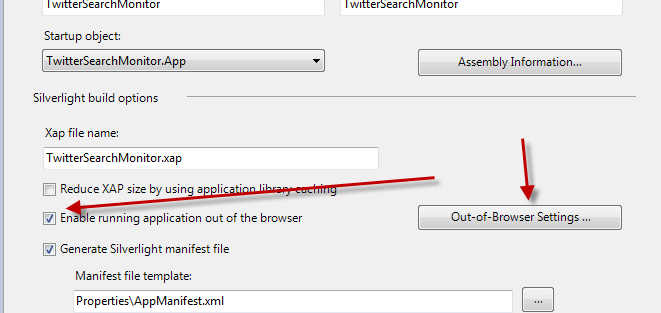
Using Visual Studio, right-click on the Silverlight application’s project and choose properties.  You’ll see a dialog box come up – notice the checkbox about Out-of-browser settings:

Application properties

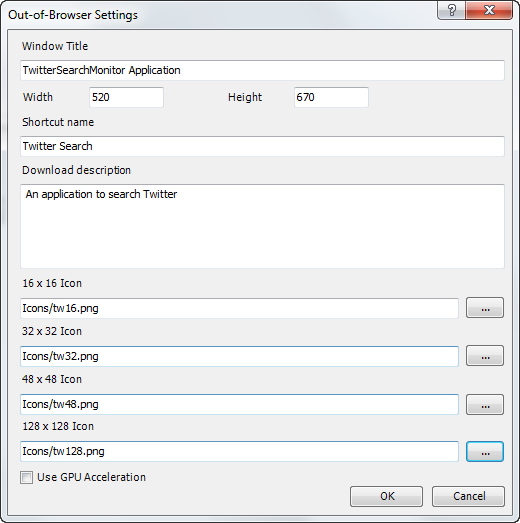
When you click that you’ll be greeted with options to complete:

Out-of-browser settings dialog

These settings are important to provide visual information about your application when installed and running out of the browser.

  • Window Title – what is displayed in the window chrome for the app
  • Width/Height – the starting width and height of your application when launched
  • Shortcut name – the name for the desktop/start menu shortcut
  • Download description – a description of the application
  • Icons – must be PNG and must be included in the project marked as Content

Once you have all those in place your app is enabled for out-of-browser capabilities.  Let’s add an install button for your users in the navigation area in MainPage.xaml in the StackPanel called LinksStackPanel, add this XAML:

   1: <Rectangle x:Name="Divider3" Style="{StaticResource DividerStyle}"/>
   2: <HyperlinkButton x:Name="InstallLink" Style="{StaticResource LinkStyle}" 
   3:                  Content="install" Click="InstallOffline"/>

Now in MainPage.xaml.cs write the function for InstallOffline:

   1: private void InstallOffline(object sender, RoutedEventArgs e)
   2: {
   3:     if (Application.Current.Install())
   4:     {
   5:         InstallLink.Visibility = Visibility.Collapsed;
   6:     }
   7: }

You can see that after we check for a successful install, we hide the install button as it isn’t needed anymore.  What we need to do though is make that more dynamic in that it automatically knows to do that.  Additionally we don’t want the install button to show if the application is launched out-of-browser to begin with.  Luckily we have an API with a few properties that will help us out: InstallState and IsRunningOutOfBrowser.  Let’s make use of both of these.

Detecting InstallState and IsRunningOutOfBrowser

In the MainPage.xaml.cs file, we’re going to add an event handler to detect the change of our installation state of our application as well as a loaded event handler:

   1: public MainPage()
   2: {
   3:     InitializeComponent();
   4:     Loaded += new RoutedEventHandler(MainPage_Loaded);
   5:     Application.Current.InstallStateChanged += new EventHandler(OnInstallStateChanged);
   6: }

In that method we’ll check the various states to determine if our InstallLink should be visible or not (as well as the last divider):

   1: void OnInstallStateChanged(object sender, EventArgs e)
   2: {
   3:     switch (Application.Current.InstallState)
   4:     {
   5:         case InstallState.InstallFailed:
   6:             break;
   7:         case InstallState.Installed:
   8:             ToggleInstallLinks(true);
   9:             break;
  10:         case InstallState.Installing:
  11:             break;
  12:         case InstallState.NotInstalled:
  13:             ToggleInstallLinks(false);
  14:             break;
  15:         default:
  16:             break;
  17:     }
  18: }
  19:  
  20: void ToggleInstallLinks(bool hidden)
  21: {
  22:     InstallLink.Visibility = hidden ? Visibility.Collapsed: Visibility.Visible;
  23:     Link3.Visibility = hidden ? Visibility.Collapsed : Visibility.Visible;
  24: }

Now in the Loaded event handler we’ll check to see if the application is running out-of-browser or not:

   1: void MainPage_Loaded(object sender, RoutedEventArgs e)
   2: {
   3:     if (App.Current.IsRunningOutOfBrowser)
   4:     {
   5:         ToggleInstallLinks(true);
   6:     }
   7:     else
   8:     {
   9:         if (App.Current.InstallState == InstallState.Installed)
  10:         {
  11:             ToggleInstallLinks(true);
  12:         }
  13:     }
  14: }

Using these two APIs we can now automatically change our UI to hide functions not needed.

Detecting network changes

If our application doesn’t have network access, we shouldn’t allow the search to run because it may not have the capability of finding the Twitter search API.  There is an additional API for NetworkInterface that we can use to detect this.  We’ll do this in our Search.xaml.cs page by first adding an event handler in the constructor after our Loaded event handler line:

   1: NetworkChange.NetworkAddressChanged += new NetworkAddressChangedEventHandler(OnNetworkChanged);

This raises an event when the network status has changed.  Now in the OnNetworkChanged event handler we’ll check to see if the network is available and, if it isn’t, disable searching capabilities until it is:

   1: void OnNetworkChanged(object sender, EventArgs e)
   2: {
   3:     if (!NetworkInterface.GetIsNetworkAvailable())
   4:     {
   5:         // network may not be available, halt searching
   6:         SearchButton.IsEnabled = false;
   7:         SearchButton.Content = "DISCONNECTED";
   8:         _timer.Stop();
   9:     }
  10:     else
  11:     {
  12:         SearchButton.Content = "SEARCH";
  13:         SearchButton.IsEnabled = true;
  14:         _timer.Start();
  15:     }
  16: }

This is only an example of course, and you could provide other UI hints such as status indicators, etc. but for our application this should work now.

NOTE (Here be dragons): Simply checking for GetIsNetworkAvailable doesn’t guarantee in all circumstances that the Internet is not available.  Due to various ways corporations configure proxy servers and local IP addressing it is always good practice to have a fallback mechanism if you need to verify WAN Internet access.  This can be done by simply doing a WebClient request for a file on the web server – if the request succeeds you have Internet access, otherwise you may not.

You can find out more information about Out-of-browser experiences here:

Out of browser updates

You may be wondering how to trigger updates to an application if it was installed on to the machine.  There is an API that a developer can use called CheckAndDownloadUpdateAsync which triggers the update model.  The update model is outlined here.  Even though that article has a different API, the model of updating is the same *after* that method above is called.

Summary

Now we’ve taken our application from a blank slate to a working application with data and that can be installed out of the browser.  I hope this has been a helpful exercise to walk through.  Download the code to be sure to play around with it and learn.  Here are some other helpful resources for you:

Hopefully this will get you started writing Silverlight applications!

This past weekend during a conversation about Silverlight controls at the San Diego Silverlight Education Day, someone asked about the DatePicker control and why the “15” is there and how come they can’t change it.  Here’s the control that was being referred to:

Silverlight DatePicker default

The calendar displays an icon to the right of the text box area which, when clicked, displays a drop-down calendar picker.  The icon always says “15” and is intended to look like a little calendar date sheet (you know, like those desk calendars).

The question was how to change that icon.  Well, easily.  You can easily edit the template using Blend and drill into the UI parts and change it.  I opened Blend, chose to edit the template, then edit the Button template and you’ll see that the “15” is actually a Path:

DatePicker custom template in Blend

Now that I know where that template is, I can put anything i want there to replace the Path data to anything I want.  But the question was raised as to why it doesn’t show the current date text instead.  So on the plane ride back I did a quick refactor to see how easy that could be done.

After getting the Ms-PL licensed source code for the DatePicker control from the Silverlight Toolkit, I had access to the full source of the control to get the inner guts.  Here’s what I did. 

First, I changed generic.xaml (located in Themes folder) definition of DatePicker style/template.  I changed the Path to a ContentPresenter (about line 437 in the generic.xaml file).  I removed the Path and replaced it with this:

   1: <ContentPresenter x:Name="DropDownDateText" HorizontalAlignment="Center" Margin="0,0,0,0" 
   2:     VerticalAlignment="Center" RenderTransformOrigin="0.5,0.5" Grid.Column="0" Grid.Row="1" 
   3:     Grid.ColumnSpan="4" Grid.RowSpan="3"/>

Once I had that in place I just went into OnApplyTemplate in DatePicker.cs and after the call to base.OnApplyTemplate() (line 851) I added some additional code:

   1: // change the date to the current date
   2: string DateDay = DateTime.Now.Day.ToString(CultureInfo.CurrentUICulture);
   3:  
   4: // get the Button template and insert the content as current date text
   5: Button b = this.GetTemplateChild(DatePicker.ElementButton) as Button;
   6: TextBlock tb = new TextBlock();
   7: tb.FontFamily = new FontFamily("Arial Bold");
   8: tb.FontSize = 9.5;
   9: tb.FontStretch = FontStretches.Expanded;
  10: tb.UseLayoutRounding = true;
  11: tb.Text = DateDay;
  12: b.Content = tb;

What this does is basically use the local time information to get the current Day text and put that TextBlock as the Content for the button…the result is that the DatePicker now will display the number for the current Date (I took this screenshot on 05 OCT 2009):

Custom DatePicker with current date text

So if I wanted this then I could recompile the source and use my custom DatePicker in my application.  The key difference in this modification is that I’m not using a Path, but a TextBlock.

I’m not sure if this is useful, but since the question was posed and I had time to kill, I thought I’d post my findings.  Having access to the source control for all the Silverlight controls is a great way to customize/extend exactly what you need as well as serving as a great learning resource for you in your control development.

Hope this helps!